.png?width=200&height=100&name=FJ%20white%20colour%20(400%20x%20200%20px).png)
You can import parts, work orders and operations into FourJaw from a CSV exported from your ERP or planning system. The import runs through a short wizard: upload your file, map your columns to FourJaw's fields, and confirm.
This article walks through each step so your imports go through cleanly.
Watch - How to import your Work Orders into FourJaw
Importing your ERP export
Most people import by exporting a work order file straight from their order management or ERP system and uploading it directly into FourJaw. There's no need to reformat it first. You map your file's columns to FourJaw's fields as part of the import (more on that below), and FourJaw remembers that mapping for next time.
Want an example to work from? Download our example CSV.
Its headers match FourJaw's fields exactly and it includes an example row showing accepted date and duration formats, so it's a handy reference for the structure FourJaw expects, and a good starting point if you're building a file by hand.
CSV requirements
Your file needs to meet a couple of requirements:
- It must be a CSV. Other file types are rejected before upload.
- It must include the required fields. Every row needs a work order reference number and a product (part) reference number. These are how FourJaw identifies and links your data.
Note: You don't need to strip your file down to just these columns. Any columns FourJaw doesn't need are simply ignored when you import, so you can upload your export as it is.
Dates and times
FourJaw accepts a wide range of date and time formats, so in most cases you can import your file as your ERP exports it without reformatting. Common examples include:
2027-02-17and2027-02-17 08:00:0017/02/2027and17/02/2027 14:3017 Feb 2027- ISO 8601, for example
2027-02-17T08:00:00Z
You can also mix formats within the same file and they'll all import correctly.
Day and month order. If your organisation location is set to US, we assume your dates are in US format [MM/DD/YYY] for example 09/19/2026 as the 19th of September 2026. Otherwise we read them day first [DD/MM/YYYY]
Tip: For the full list of supported date and time formats, download the accepted formats reference.
Estimated run time durations
Estimated run times must be given in hours as a decimal, not hours and minutes.
For example, 1 hour 30 minutes is 1.5, not 1:30 or 1h 30m.
To convert minutes to decimal hours, divide the minutes by 60:
- 15 minutes =
0.25 - 45 minutes =
0.75 - 135 minutes (2h 15m) =
2.25
Note: If your estimated run times are written as minutes, or actually formatted as time, converting these is possible.
Download our example XLS to see how to do it using a spreadsheet.
Step 1: Upload your file
In the Work Orders page click [+ Import CSV] to start the import wizard.
You can also get the FourJaw template from this screen.
Once you have selected your file, choose Next: Mapping.
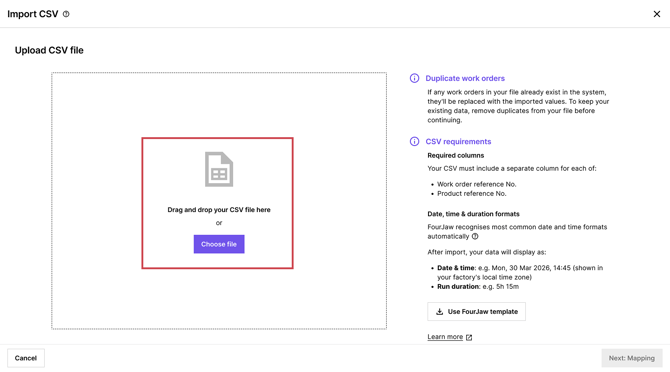
Upload your CSV, or download the FourJaw template.
Step 2: Map your columns
On the mapping step, you need to tell FourJaw which of your CSV columns corresponds to each FourJaw field. Each column has a dropdown for you to pick the matching FourJaw field.
A preview of your file's data sits alongside the mapping, so you can see the actual values in each column while you map them and get it right.
A few rules to keep in mind:
- Work order number and product numbers are required fields and must be mapped to a column in your CSV.
- Two columns can't map to the same FourJaw field.
- Any column you don't map is ignored on import.
Note: Mapping is persistent across your organisation. Once you have mapped your CSV, FourJaw remembers your mappings and this will only change if another person on your team makes a change.
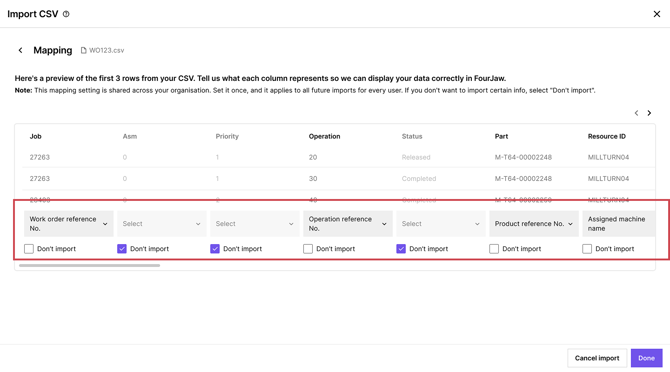
Match each of your columns to a FourJaw field, with your data shown alongside.
Good to know: FourJaw remembers your mapping. Once you've mapped your columns, FourJaw saves that mapping for your organisation. Next time you import a file with the same layout, your columns are recognised automatically, so you only have to map once.
Duplicate work orders
FourJaw handles duplicates so your data stays clean:
- Duplicates within a file: if the same operation reference appears more than once in a single file, the last version in the file is the one that's kept.
- Matching existing work orders: importing is an update, not a copy. If a work order already exists in FourJaw, the import updates it rather than creating a second one.
- Re-importing the same file is safe. Running the same file again updates your records without creating duplicates, and importantly without wiping out edits you've already made inside FourJaw.
See Editing Work Orders and Tablet Updates for how your edits are protected.
Importing on a schedule
If you import the same file regularly, you can automate it so you don't have to upload by hand each time. See Automating your CSV Import for example middleware that picks up your CSV and sends it to FourJaw on a schedule.
Have a question?
Don't hesitate to get in touch with our friendly support team by emailing support@fourjaw.com.