.png?width=200&height=100&name=FJ%20white%20colour%20(400%20x%20200%20px).png)
One machine stoppage often has more than one cause. A machine goes down for a tool change, then the tool change runs into a material shortage, and the whole hour lands in your reports under a single reason. That one reason gets exaggerated, the others disappear, and the picture your team makes decisions from is skewed.
We've introduced a smart downtime splitting functionality on tablets to fix this.
Operators can now record more than one reason against a single downtime, and split the time accurately, making your data even more reliable.
The two ways to split reasons:
- End the current reason and start another. This cuts the downtime at the current moment and is the quickest option when the operator is stood at the tablet and the downtime reason has just changed.
- Split a downtime from the activity log. This lets the operator go back in time to choose when the reason changed. Splitting works both for tidying up a downtime that has already finished and for a downtime still in progress where the change happened a while ago.
You can only split downtimes that are larger than 2 minutes.
Ending the current reason and starting another
While a machine is in a downtime, the tablet dashboard now shows an End [Downtime reason] button beneath the dial, naming the reason in progress.
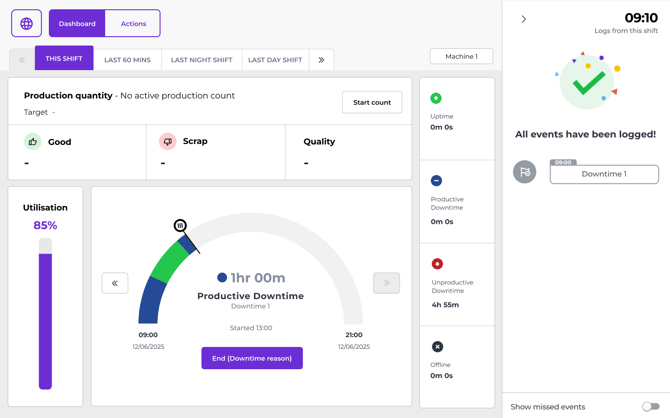
Ending a downtime reason in this way, will prompt the user to start a new reason. This can be used when you know you're moving from one downtime reason to other, for example moving from Cleaning, to a Tool change. 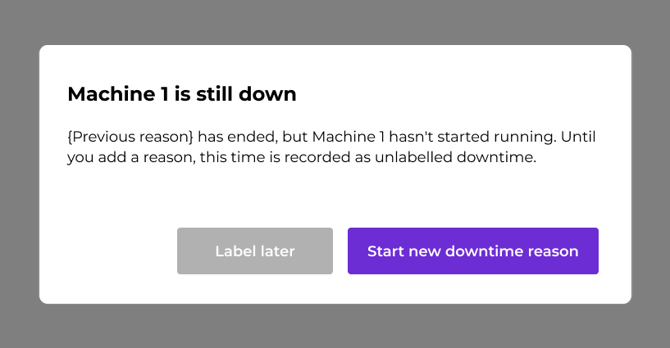
When prompted, the operator then chooses:
- Start new downtime reason opens the usual category and reason picker. Picking a reason labels the new period straight away, and it appears in the activity log as a normal labelled downtime.
- Label later splits here and creates a new period of dowmtime. FourJaw's existing downtime prompt will ask the operator to label it, exactly as it does for any other unlabelled downtime.
If the machine starts running. The current downtime reason ends by itself when the machine returns to uptime, and the End button disappears. Operators only see it when there's a downtime to end.
Splitting a downtime from the activity log
To split a past downtime reason, the operator selects the downtime in the activity log. This opens the Split downtime reason window.
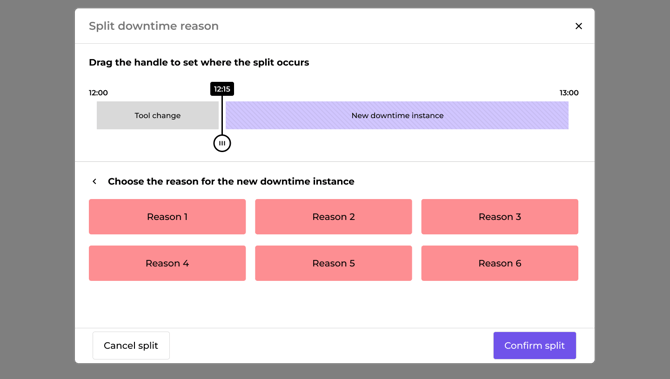
The window shows the downtime as a timeline, with its start and end times at either end. Dragging the handle sets the point where the split happens, and a chip above the handle shows the split time as it moves. The left of the handle keeps the original reason and the right becomes the new downtime instance, so the operator can see the timings of the split before committing to it.
Beneath the timeline, the operator picks a category and reason for the new segment using the same picker they use everywhere else on the tablet. Then:
- Confirm split saves it. The single downtime becomes two, and both appear in the activity log straight away.
- Cancel split closes the window and changes nothing.
A reason is required. Confirming without one shows an error and the operator can go back to the picker, so a split is never saved half-finished.
The handle can't reach either end. The split point always sits inside the period, which prevents an empty segment being created. It also moves in fixed steps rather than freely, so it's easy to land on the right time with a finger on a tablet.
What happens to the split downtime
The two segments are ordinary labelled downtimes from the moment the split is saved. They:
- Appear in the activity log as two separate entries, one after the other.
- Can be relabelled individually, in the same way as any other downtime entry.
- Flow into your reporting, each counting against its own reason.
Their durations always add up to the original downtime exactly. There is no gap between them and no overlap, so your total downtime never changes when an operator splits a stoppage. Only the way it's attributed does.
This is the point of the splitting improvement.
A 90 minute stoppage that was recorded as 90 minutes of tool change can now read as 20 minutes of tool change and 70 minutes of waiting for material. Your top downtime reasons start reflecting reality, and the actions you take off the back of them follow.
Have a question?
Don't hesitate to get in touch with our friendly support team by emailing support@fourjaw.com.