.png?width=200&height=100&name=FJ%20white%20colour%20(400%20x%20200%20px).png)
Plans don't always hold. A rush order arrives that nobody has scheduled yet. A job is moved off a machine that's gone down. An operator picks up work that only exists on a printed job card. Until now, the only jobs an operator could start on the tablet were the ones already scheduled to that machine, so anything else meant a trip to the office or a job that never got clocked on at all.
The tablet now has search. Operators can find any job on the shopfloor, start it from where they stand, and create one if it doesn't exist yet.
Finding a job
Search on the tablet dashboard opens the Search job window.
.png?width=670&height=419&name=379%20(1).png)
Search by work order, OP, or product number. By default, the search will look for Not Started Jobs on your current Machine.
Search options:
- Machine. Change this to look at what's assigned to another machine, or to include jobs that haven't been assigned yet.
- Status. Filter to Not started, In progress or Completed.
.png?width=670&height=423&name=2%20(5).png)
The number above the results shows how many jobs matched and from which machines, for example 100 jobs on Machine 1.
The cards show the work order and operation details. You can start a job from here, 'show more' to load more of the results or create a new job.
Starting a job from the results
Each result card has a Start button, so the operator can start a job straight away from the search window without going back to the dashboard first.
One job at a time per machine. A job has to be paused before another one can be started. If the job is on another machine, it'll need to be paused there first.
Starting a job that belongs to another machine. If the operator starts a job scheduled to a different machine, FourJaw will edit the operation and assign it to the machine that actually ran it.
Creating a job that doesn't exist yet
If you're looking for a specific Work Order and the search comes back empty, you can create a job, directly from where you are.
.png?width=670&height=494&name=1.1%20(1).png)
The Work Order number and Product number are required fields.
Save will not be available until both required fields are filled in. The same work order can't be created twice: if it already exists, FourJaw shows the operator the existing job rather than letting them add a duplicate.
When the job already exists
As the operator types a work order, operation or part number into the create form, FourJaw looks for matches as they go, across every machine and including jobs that aren't assigned to one.
If there's a match, the field will show what already exists in the system:
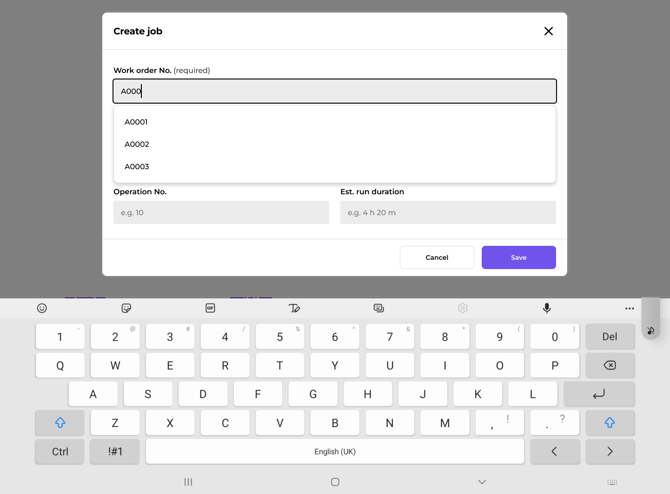
This is useful if you want to add an additional Operation to an existing Work Order and it stops Work Orders and Operations being duplicated because an operator couldn't find it.
Have a question?
Don't hesitate to get in touch with our friendly support team by emailing support@fourjaw.com.