.png?width=200&height=100&name=FJ%20white%20colour%20(400%20x%20200%20px).png)
Now that your operators are logging parts with Part Count, you can bring that data straight onto your dashboards in real time.
Three new additions turn those counts into decisions: the Production Quantity Trend and Production Quantity By Asset widgets, plus an upgraded Live Machines widget that now shows a live part count on every machine. Together they let you see how much you're making, how much is scrap, and whether you're on track to hit target, without waiting for an end-of-shift report.
Getting started: these widgets are built on Part Count. If your operators aren't logging parts yet, set that up first. See Count Production Quantities & Parts.
Set your machine production targets
To get the most from these widgets, set a production target for each machine. Targets are what power the target cumulative lines and let you compare actual output to plan.
Go to Settings → Machine performance targets, then set a production quantity target in units per hour for each machine. Machines are grouped by cell or machine area, so you can work through them area by area.
You can also jump straight there from any Production Quantity widget: open the widget's ··· menu and choose Set machine production target.
Once saved, the target is applied across your production quantity widgets, for both past and future periods.
Targets only count planned hours. Your hourly target applies only to hours you're planned to be productive. If a period has no planned production time (a Friday afternoon, say), the target line flattens rather than climbing, so you're measured only against hours you planned to run.
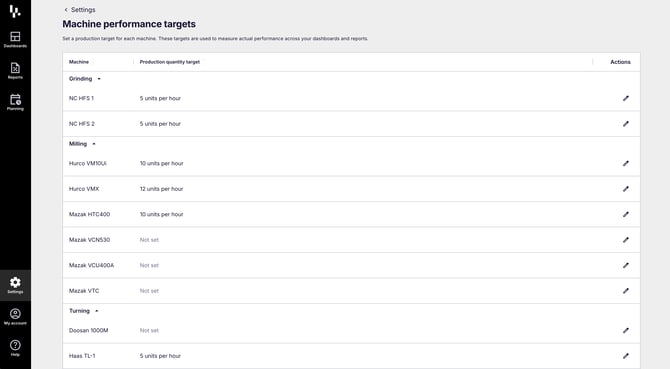
Set a units-per-hour target for each machine under Settings → Machine performance targets.
Production Quantity Trend
The Production Quantity Trend widget shows how your output builds up over time. For each time period you get:
- Good units (green bars) and Scrap units (red bars)
- A Cumulative good units line that adds up your good parts as the period goes on
- A dashed Target cumulative total units line, so you can see at a glance whether you're ahead of or behind plan
Hover over any point to see the exact good, scrap, cumulative good and target figures for that moment.
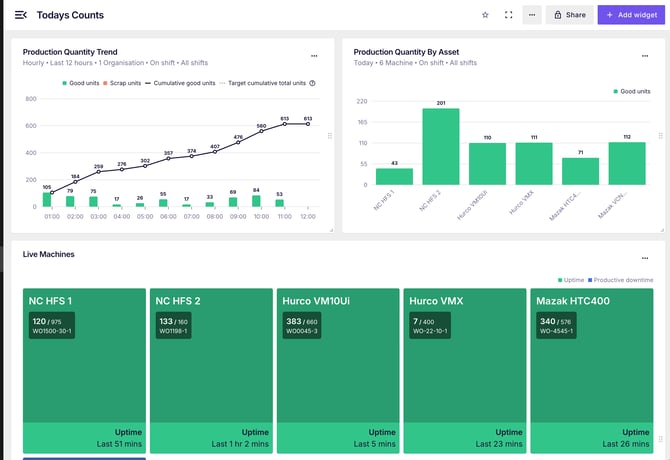
Good and scrap over time, with a cumulative line tracking against your target.
Configure it to suit you. Open the widget's Edit menu to change:
- Value grouping: group the x-axis by Hourly, Daily or Weekly
- Units shown: Total units (good + scrap) or Good and scrap separately
- Target line: turn Show target cumulative total units on or off
Production Quantity By Asset
The Production Quantity By Asset widget compares your machines side by side. Each asset gets a pair of bars, good units (green) and scrap units (red), so you can spot your top performers and your problem machines in one glance.
Hover over any machine to see its good and scrap totals (for example, Mazak HTC400 showing 15 good and 10 scrap).
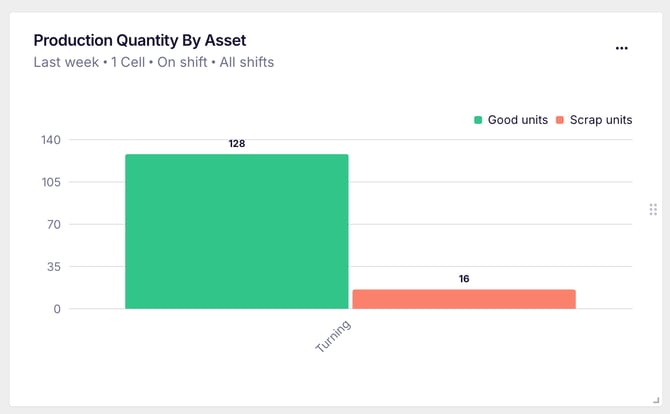
Good vs scrap for every machine, side by side.
Live Machines now shows live part counts
The Live Machines widget already gives you a real-time, colour-coded view of every machine's status. Now each tile also shows the live part count for the active job.
On each machine you'll see:
- The count against the work order target: for example 15 / 33, meaning 15 good parts made against a target of 33
- The work order number or reference for the job that's running (for example WON-7613-22), or a custom reference such as "Part 1"
- The machine's live status, colour-coded, with how long it's been in that state
This mirrors exactly what your operator sees on the tablet: as they log good parts and scrap against the active job, the count on the dashboard updates in real time. If a machine passes its target, the count keeps climbing so you can see overproduction too.
.png?width=670&height=402&name=Group%20390%20(3).png)
Every machine tile now shows the live count against its work order target.
How to add a Production Counting widget to your dashboards
- Open the dashboard you want to add to and click Add widget.
- In the Widget Library, choose the Production Quantity category (both new widgets are marked New).
- Select Production Quantity Trend or Production Quantity By Asset and click Add widget.
- Use the Edit menu to set your filters and display options.
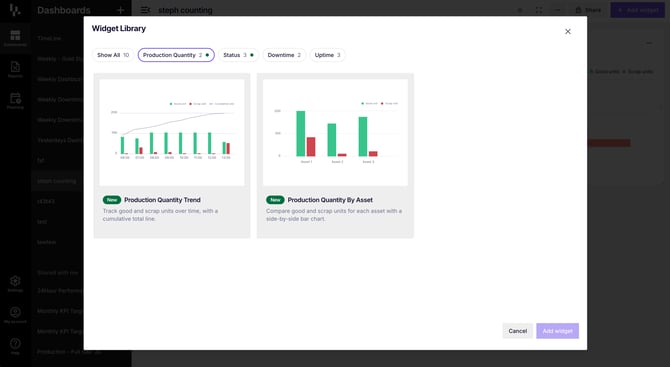
Add the new widgets from the Production Quantity category in the Widget Library.
Have a question?
Don't hesitate to get in touch with our friendly support team by emailing support@fourjaw.com.