.png?width=200&height=100&name=FJ%20white%20colour%20(400%20x%20200%20px).png)
Editing a shift allows you to adjust hours for a specific date without affecting your recurring schedule (e.g. a Day shift finishing earlier on a bank holiday), or update all shift instances at once when your entire shopfloor changes its schedule.
Note: To ensure shift changes are applied in time on machine tablets, updates must be made at least 15 minutes before the shift starts. Changes made after this window will not be reflected on the tablets or machine data.
Edit a Shift Schedule
1. On the Production Planning page, select the shift you wish to edit from the calendar.
2. Select Edit.
.png?width=670&height=402&name=2%20(1).png)
3. If the shift is recurring, select whether you want to edit this specific date only, or this and all following instances.
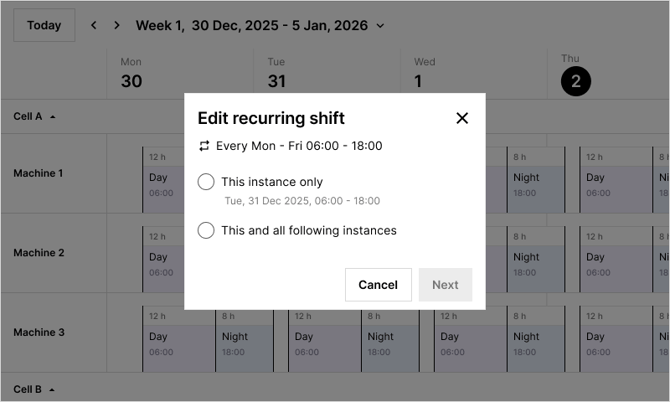
4. If the shift was originally created across multiple machines, select the machine you want to edit, or select All to apply the change across all affected machines.
.png?width=670&height=498&name=4%20(1).png)
5. In the Edit modal, you can update the category, adjust the start and end time, and modify the recurring pattern. Note: If you are editing a single instance only, the recurring settings will not be available.
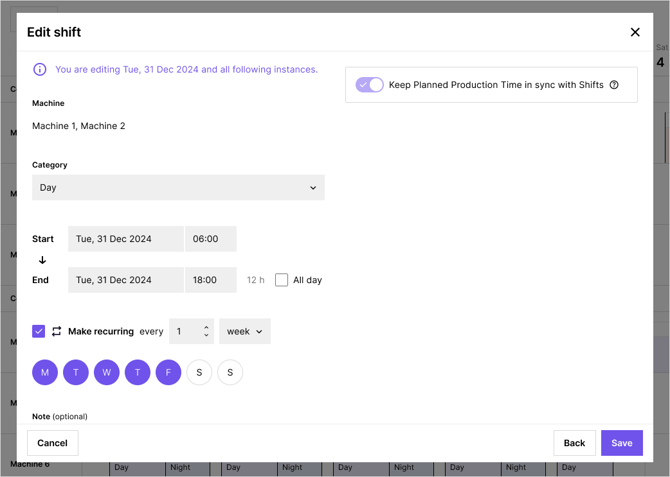
6. Click Save. The updated shift will appear on the calendar.
Edit category name or colour
1. On the Production Planning page, click the Settings icon in the top right corner.
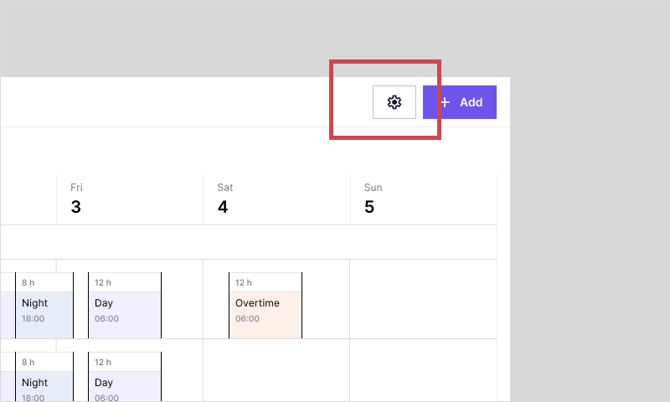
2. In the Settings modal, you can edit an existing category name or colour, or add a new category as needed. You can also archive a category that is no longer in use — once archived, it will no longer appear in the category dropdown when creating a new shift.
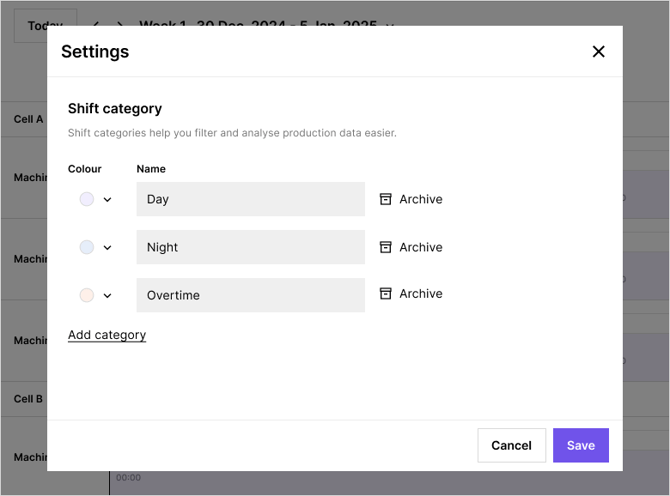
3. Click Save.
- The updated category name will automatically be reflected in the shift filters on Reports and Dashboards.
- The updated colour will automatically be reflected on the corresponding shifts on the calendar.