.png?width=200&height=100&name=FJ%20white%20colour%20(400%20x%20200%20px).png)
Deleting a single shift instance allows you to remove shifts on specific dates without affecting your recurring schedule, or delete all shift instances at once when your entire shopfloor changes its schedule.
Note: To ensure shift changes are applied in time on machine tablets, updates must be made at least 15 minutes before the shift starts. Changes made after this window will not be reflected on the tablets or machine data.
To delete a shift:
1. On the Production Planning page, select the shift on the date and machine you wish to delete.
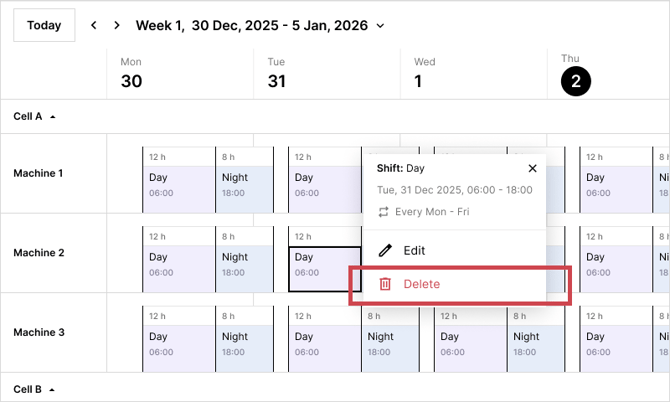
2. If the shift is recurring, choose whether to delete this specific instance only, or this and all following instances.
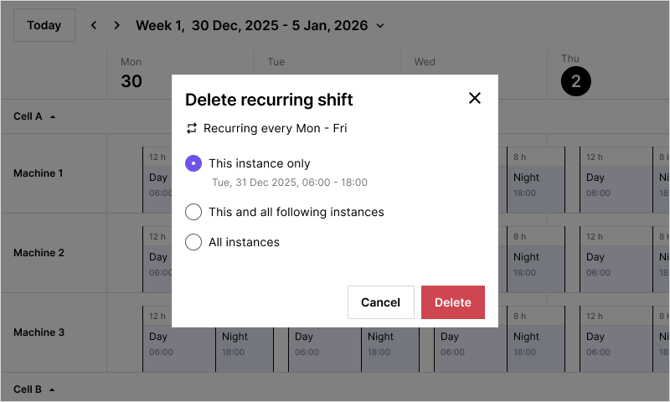
3. Click Delete.
-
- The corresponding data for the deleted shift will no longer be included when filtering data by shift in Reports and Dashboards.
- If the shift has already begun, there's no way to remove it from the tablets.