.png?width=200&height=100&name=FJ%20white%20colour%20(400%20x%20200%20px).png)
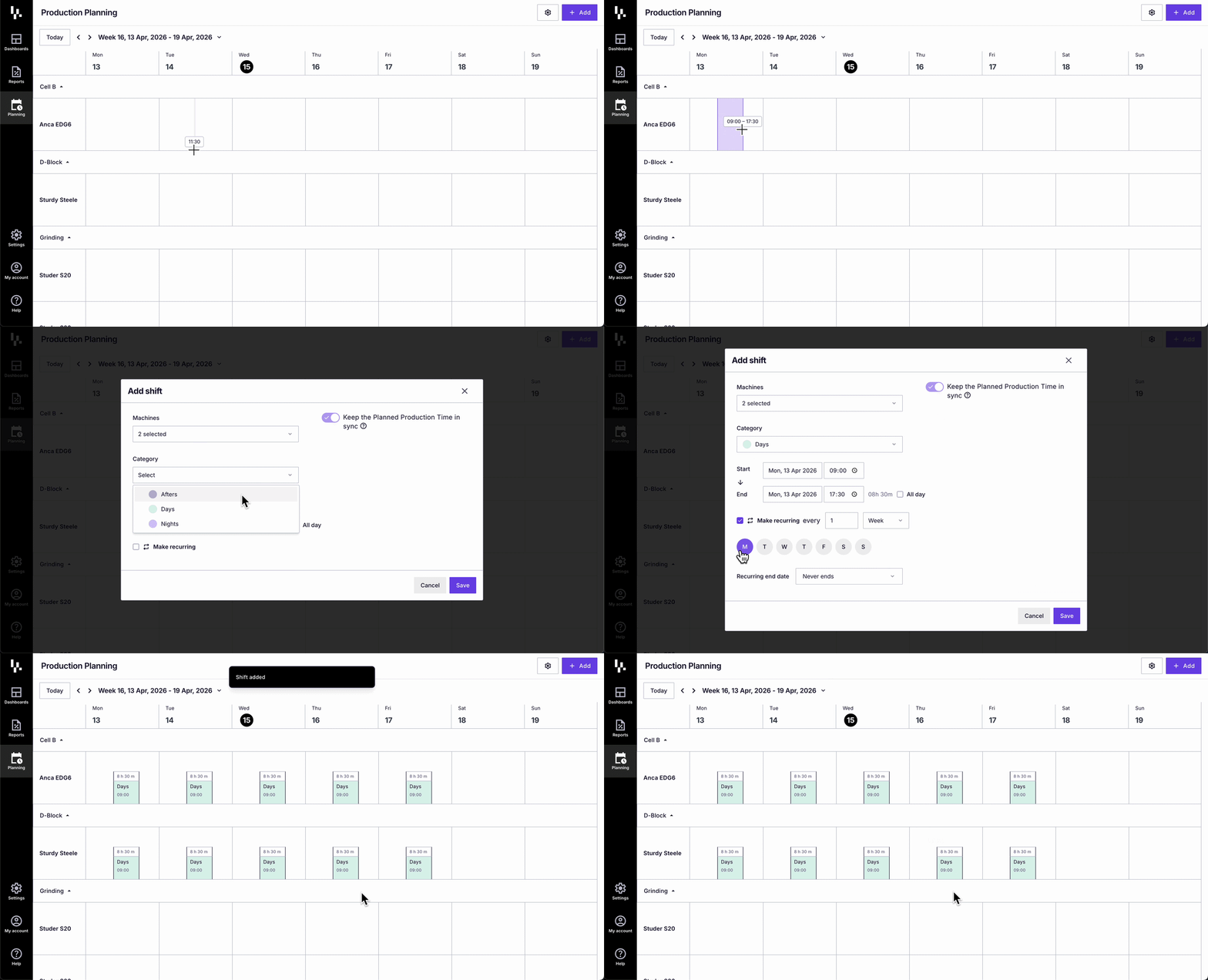
- Click the + Add button in the top right corner of the Production Planning page, or click and drag directly on the calendar to select your desired time range. (Similar to how you would create a meeting in your calendar application!)
- Select the machines this shift applies to.
- Select a category - Such as Day, Night, or Overtime. This determines how the shift is categorised and allows you to filter and analyse machine data by shift type in Reports or Dashboards.
Tip: If the category you need is not listed, navigate back to the Production Planning page, click the Settings icon in the top right corner, and customise your categories from there. - Set the start and end time.
Tip: If the shift is less than 24 hours, ensure the start and end date are set to the same date. - Set a recurring schedule (optional). If the shift repeats regularly, select “Make recurring” and set the frequency and days of the week. Set a Recurring end date if the schedule has a defined finish, or leave it as Never ends for an ongoing pattern.
- Click Save. The shift will appear on the calendar.
Example:
To set up a Day shift (6am-6pm), Monday to Friday every week, select the category as Day, set the start time to 09:00 and end time to 18:00 on the same date, enable Make recurring, select every 1 week on M, T, W, T, F.
.png?width=670&height=377&name=8%20(1).png)