.png?width=200&height=100&name=FJ%20white%20colour%20(400%20x%20200%20px).png)
The Work Orders page brings all your imported work orders together in a single table. Each work order can be expanded to show its operations, so you can see the whole job and every step within it. This article explains what each column means and how to manage the view so you can focus on the work that matters right now.
Note: Getting work orders in: Work orders are imported from your ERP or planning system via CSV. If you haven't imported any yet, start with Importing Work Orders from CSV. To keep them updated without uploading by hand each time, see Automating your CSV Import.
Introduction to Work Order Management
About the Work Orders page
The page shows your work orders as a table. Each row is a work order, and expanding a row reveals its operations. The table is paginated, showing 20 work orders per page by default.
There are more columns than fit on most screens, so the table scrolls sideways to reach the ones off to the right.
Tip: On a trackpad, swipe left or right with two fingers. With a mouse, hold Shift and scroll the wheel to move the table across.
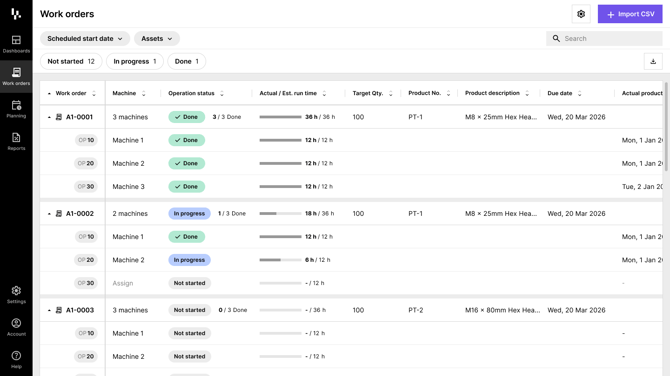
Every work order in one table, each expandable to its operations.
What each field means
Here's what you'll see across the columns:
- Work order number: the reference or identifier for the work order, usually carried over from your ERP. This is a required field in Fourjaw.
- Product No: the part number the work order is for. This is a required field in Fourjaw.
- Product Description: the description of that part.
- Machine: the asset assigned to the operation. If an imported machine name hasn't been matched to a FourJaw machine yet, you'll see a '?'
- Operation status: the production state of the operation, shown as Not Started, In Progress or Done.
- Target Qty: the quantity the work order is aiming to produce.
- Scheduled start and Scheduled end: the planned production window for the operation.
- Actual run time: the time booked against the job so far, calculated from job activity on the tablets, including all downtime.
- Est. run time: the estimated run time for the operation, used to work out the progress bar.
- Due Date: the date the work order is due.
- Last modified: when the operation was last edited in FourJaw.
Each operation also shows a progress bar that compares actual run time to the estimated run time, so you can see at a glance how far along a job is.
Managing the view
Sorting: Click any column header to sort the table by that column, and click again to reverse the direction. You can sort by work order number, machine, operation status, actual run time, target quantity, product number, product description, due date and last modified.
Searching: Use the search box to find work orders by work order number, operation code, part or machine. Search isn't case sensitive and matches partial terms, so you don't need the full reference to find what you're after.
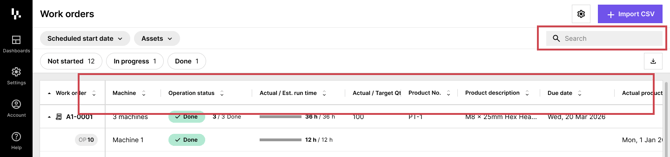
Click a column header to sort, or use search to jump straight to a work order.
Filtering. Three filters help you narrow the list:
- Status: filter to work orders that are Not Started, In Progress or Done. The list updates immediately, but will reset if the page is refreshed.
- Asset: filter to work orders with operations assigned to selected machines. This can be multiple machines
- Planned start date: filter to operations whose planned start date falls within a date range you choose.
Filtering by status changes which work orders appear but doesn't hide operations within a matching work order. Filtering by asset or scheduled start date narrows the operations shown, and doesn't change a work order's summary totals.
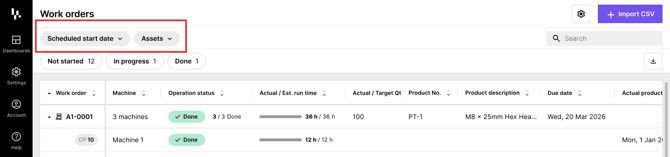
Filter by status, asset or scheduled start date to focus the view.
Have a question?
Don't hesitate to get in touch with our friendly support team by emailing support@fourjaw.com.