.png?width=200&height=100&name=FJ%20white%20colour%20(400%20x%20200%20px).png)
We know how it goes, the plan lives on a desk in the office and the operator doesn't know about it. Work orders get scheduled in your ERP, it's printed out and before it even reaches the shop floor, it's out of date.
We've updated the tablet interface to clearly show the operator what's up now, what's next, and lets them start, pause and complete a job on the spot. Updates are instantly sent out to the tablets, no confusion, no mistakes.
Seeing what to work on
The top of the tablet screen shows Current job: the job in progress, with its status, job and operation number, part number and quantity, a live timer counting up against the estimated run time, and a progress bar.
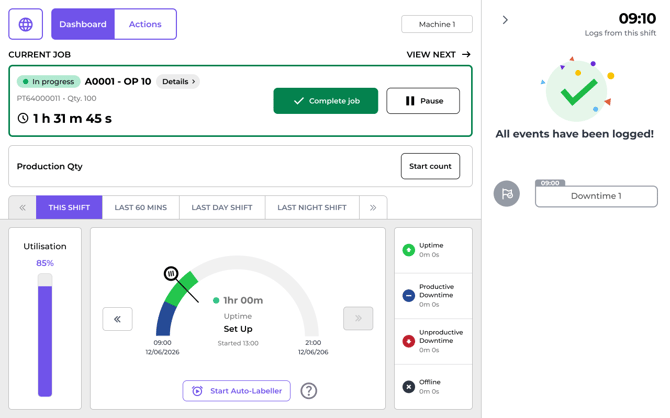
View next shows the next job to do plus the three after it. Each card shows the work order details, a Details link to find more information and a Start button.
Jobs are ordered by scheduled start time, so the first card in the row, is the one that should be picked up next.
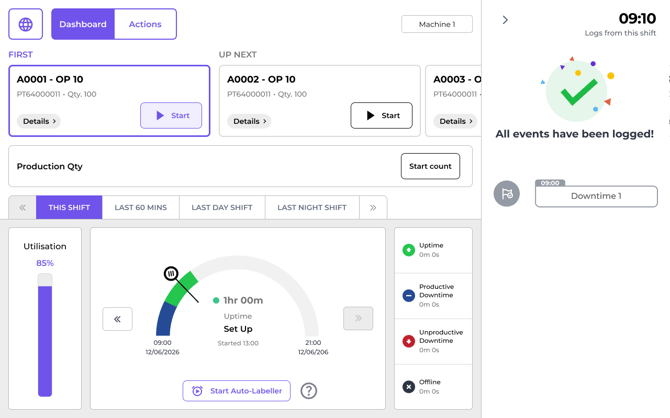
Starting a job
Press Start on a job and the tablet asks How would you like to start?
- Start job and count together starts the job and a part count in one step.
- Start job only starts the job on its own.
If a part count is already running, the question isn't asked and the job simply starts.
Switching jobs. If a job is already in progress, starting a different one prompts the operator to pause the current job and switch. If a part count is running against the job they're leaving, they'll be asked to confirm and finalise that count first, so it's worth checking the figures before switching.
Pausing and completing
The Pause button pauses the current job and shows it as paused on the tablet interface, it will stay at the top of the dashboard for you to quickly restart.
The Complete job button completes the job. The status will change to done across the tablet and web app. And a confirmation screen will appear. The operator will also see an updated list of Work Orders, so they finish one job and starts the right one next without having to go looking for it.
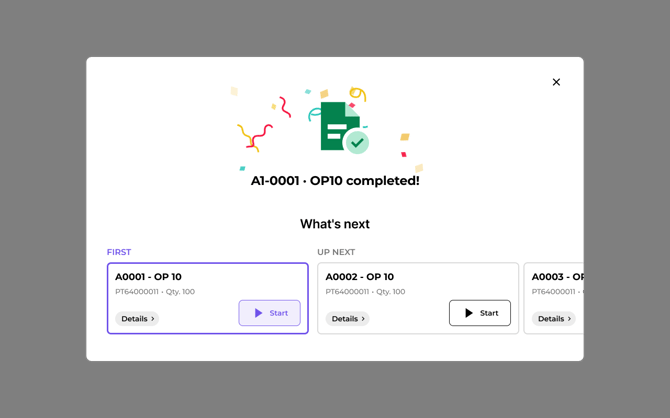
Counting parts against the job
While a part count is running the card info shows the job ID it's counting for, the target, and good, scrap and quality figures, you can Add and Edit part counts and references as usual.
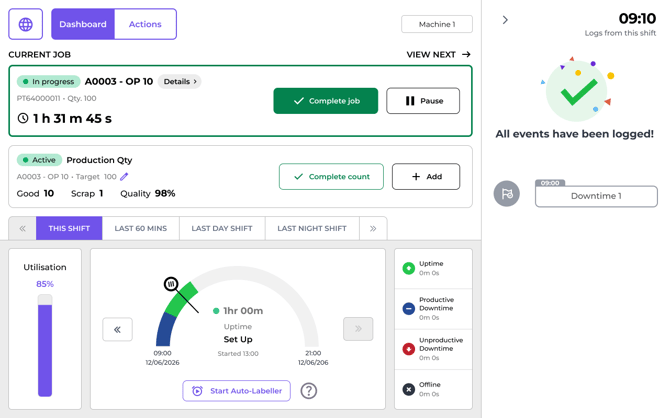
If you're counting parts against jobs, when you complete a Work Order, you'll also be prompted to complete the part count at the same time.
Have a question?
Don't hesitate to get in touch with our friendly support team by emailing support@fourjaw.com.