.png?width=200&height=100&name=FJ%20white%20colour%20(400%20x%20200%20px).png)
Before you start
You will need:
- A USB memory stick of any size
- The new Wi-Fi network name, also known as the SSID
- The new Wi-Fi password
- Access to the MachineLink device you want to update
Note: A USB memory stick may also be called a USB drive, USB stick, USB dongle or flash drive.
Collect your Wi-Fi details and create a .txt file
Open windows notepad and enter your Wi-Fi’s SSID on the first line and then the password for the network on the second line. Save the file as “Wifi”.
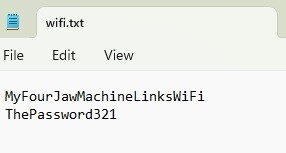
For example, your file should look like this (which one you see will be depending on if your computer is showing file extensions or not – Whichever your PC is showing, either is fine).
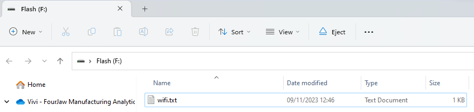
Place the Wi-Fi file on the root folder of the memory stick, it cannot be placed within a folder.
The Process
Step 01:
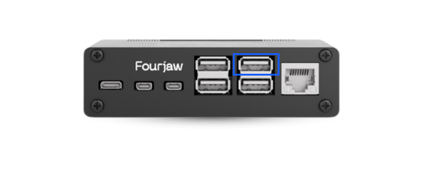
Identify which MachineLink on which you wish to change the Wi-Fi credentials. Manually remove the power cable from that MachineLink, unplug the Sensor Box USB cable to free up a blue port on the MachineLink.
Step 02:
Plug your memory stick into the now free blue USB port (highlighted in the image below) of the MachineLink and wait 30 seconds. Then plug the power cable back into the device ensuring there is now power to the unit.
Step 03:
After a few minutes, the MachineLink will automatically update the Wi-Fi details. The MachineLink will then power down which will be indicated by all lights on the sensor box going off.
Step 04:
Once the MachineLink has powered down remove the memory stick, plug the sensor box USB cable back in and manually reboot the MachineLink by removing the power cable and reinserting it.
Step 05:
The MachineLink should now connect to the Wi-Fi and be visible on the network. If it has access to the internet, you can view on the MachineLink workspace of your webapp platform.
If you experience difficulties, please speak to your Customer Success Manager to support you and your IT team through the process.